go to about:config
search / disable – browser.ml.enable
right click anywhere in browser – GPT/Chatbot sub-menu -> Remove ChatGPG / Remove Chatbot (and repeat, remove all)
go to about:config
search / disable – browser.ml.enable
right click anywhere in browser – GPT/Chatbot sub-menu -> Remove ChatGPG / Remove Chatbot (and repeat, remove all)
ERROR – Adobe Photoshop stuck on the home screen – welcome screen is frozen and you can’t see new documents you create or images you drop onto photoshop – scrollbars appear but you can’t see anything
If your photoshop welcome screen is stuck and you can’t see new files or images opened:
Disable your graphics card link to photoshop – it is no longer supported:
Settings -> performance – checkbox disable “use graphics processor”
Camera-raw -> Performance -> Use Graphics Processor “OFF”
Then update your graphics card drivers as they are released, and after every upgrade, try to switch these settings on again – if it doesn’t work, switch them off.

I had a lot of trouble getting the MacBook screen brightness keys to work with the NVIDIA driver (which was needed, because if the open source one was selected – apps would freeze/crash a lot)
https://pushka.com/mint-mac-backlight/
I followed a few instructions, but the Keys are not F1 and F2, because that would need the function key – they are named:
“xbacklight -14”
XF86MonBrightnessDown
“xbacklight +14″
XF86MonBrightnessUp
(which is the settings file home ~/.xbindkeysrc )
Output all keys/mouse movements –
Run xev from a terminal. This will give you a new window.
Place your mouse pointer in this window, type some keys and watch for results in the terminal.
My grub settings are (I show a bunch of text on boot)
/etc/default/grub
GRUB_CMDLINE_LINUX_DEFAULT=””
GRUB_CMDLINE_LINUX=”acpi_backlight=vendor”
Terminal – sudo update-grub
And follow these instructions:
(middle of the thread)
https://web.archive.org/web/20211006124501/https://forums.linuxmint.com/viewtopic.php?p=1965475
I have taken out my 3DS SD Card and copied some files to my PC a few times (also using my Android phone a few times, which may have caused an issue)
The boot section (FAT formatting) for the SD card was broken, so it wouldn’t mount and the 3DS couldn’t read it (windows disc utility showed it as RAW, meaning no file system, just a bunch of raw data that no device can read)
TestDisk Download – CGSecurity – [ backup mirror hosted on this website file backed up 2023 ]
You can re-write the boot mount (you can “recover” or “backup” lost files, but all the programs are expensive – do not format the card if windows says “can’t read drive, would you like to format”
3DS message: sd card can’t be accessed
Unzip the app – click the EXE testdisk_win.exe – then start a log file, select your 30GB or whatever size of SD card from the list – do a quick scan, then do a deep scan, then scan the boot record entry. The type is Windows/Intel/PC for type, then scan and “write” the boot entry – if the scans are successful you can also “view” all the files in the SD card – it should show some folders ” DCIM Nintendo 3DS ”
Then quit X 4 – and your PC should refresh and mount the drive as normal (made a backup of the entire SD card just in case…
Errors –
issue with mass usb device sd card android
CHKDSK is not available for RAW drives. (If the drive can’t boot – it is RAW, meaning that there are no files, just a bunch of ones and zeros that the computer doesn’t know what to do with , raw data, but when you fix the file system from RAW to FAT-format with repaired boot sector, it’ll all work as normal.
Raw drives can be made to work again using the app above – don’t format !
2023 – I just used this method to recover a spare laptop HDD I had inside my desktop PC – it stopped appearing / loading / being accessible – and I thought that maybe I’d be able to read the contents while booting up linux – but it was a raw drive / not bootable loadable info available, so I ran this app with Intel settings / quick scan / write – and it became open-able again <3
I had an issue where Android Apps would not finish downloading on the Google Play Store on a Samsung phone (s9+) – I tried deleting the cache, clearing data on Google Play Store and Play Services, and it still was hanging and not working – resetting the phone multiple times
I then tried opening the Samsung Store – which prompted an update, then updated a bunch of apps in there, and then the Play Store started working again (for some reason)
CouchDB is a great way to have a self-managing version controlled database – which keeps things in sync and in the right state – perfect for multiple users, multiple hardware sources all updating the same records of the database at the same time – IE an online service, registration list or other app.
I am currently using CouchDB as an engine and merging it with a web-based front end I made for a door-list ticketing app, with easy to see searchbox, guest list and here/not-here check boxes – instant name filtering and search clearing.
A great example app you can use to start testing is here on GitHub:
Share files without having them accessed by internet robots,
Upload a split ZIP – up to 500 MB – zippyshare.com
Hide links behind a captcha – links.snahp.it
The Qantas website doesn’t offer Logo Assets – even though the logo is not protected under copyright – but trademark laws.
People are going to be using their old logo in press releases and marketing unless the new logo is easily accessible.
Here are the logos in color, black and white in PNG and Vector format. The source is a vector of the colour version provided by Wikimedia – if you find official versions – please let me know.





PHPlist is a great free PHP based mailing list installation you can add to your server, like WordPress – also running with MySQL. This has been added to version v3.2.7.
Note that if you upgrade your installation, you will need to add this again – and completely new versions of PHPLIST may change how they work, though it shouldn’t be so drastic as to render this all unusable.
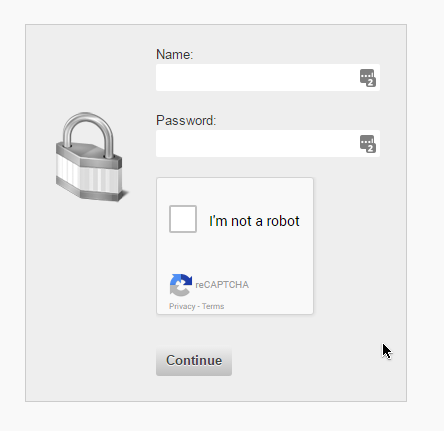
Open /list/admin/login.php
at the bottom of the file, add this code before the submit button:
echo ' <tr><td><script src="https://www.google.com/recaptcha/api.js" async defer></script><div class="g-recaptcha" data-sitekey="###YOUR-SITE-KEY###" data-size="compact"></div><br /><input class="submit" type="submit" name="process" value="' . $GLOBALS['I18N']->get('Continue') . '" /></td></tr>';
Note this ‘name=process, get->Continue input appears in 2 places
Then open /list/admin/index.php and search for this code, adding what’s in green, replace the red text with your own ID, Classes and Google ID codes.
 if ((!isset($_SESSION['adminloggedin']) || !$_SESSION['adminloggedin']) && isset($_REQUEST['login']) && isset($_REQUEST['password']) && !empty($_REQUEST['password'])) {

 /*RECAP*/
$captcha = "";
if (isset($_POST["g-recaptcha-response"])){
 $captcha = $_POST["g-recaptcha-response"];
}
if (!$captcha){
 echo '<p style="color:#fff;padding: 25px; background-color: #2f2f2f;">Please complete the captcha to prove you\'re not an internet virus robot <a href="'. $_SERVER['REQUEST_URI'] .'" id="pushkacombutton" >Go Back</a></p>';
 exit;
 return; //this switches off the index file - so it shows a blank page. I'll try change it to just break out of this if clause
}
// handling the captcha and checking if it's ok
$secret = "###YOUR-SITE-SECRET-KEY###";
$response = json_decode(file_get_contents("https://www.google.com/recaptcha/api/siteverify?secret=".$secret."&response=".$captcha."&remoteip=".$_SERVER["REMOTE_ADDR"]), true);
// if the captcha is cleared with google, continue PHPLIST auth as usual, else - stop index.php
if (intval($response["success"]) !== 1) {
 echo '<p style="color:#fff;padding: 25px; background-color: #2f2f2f;">Captcha error - please complete the captcha to prove you\'re not an internet virus robot <a href="'. $_SERVER['REQUEST_URI'] .'" id="pushkacombutton" >Go Back</a></p>';
 exit;
}
And there you have it. Register for recaptcha for free by googling it, add your site domain(s) to make them work.
This may be a little bit more tricky – since there are more than one ways to do this – so you don’t want to block real people, but you don’t want to leave a loophole for spammers.
These are the ways to subscribe/ unsubscribe to lists:
The strategy I’m using for now is to check if POST>>email value is being sent, if so, there should also be a recaptcha POST entry. For email unsubscribe links, they will use GET – and they obviously can’t use recaptcha, unless you create an intermediary page.
/list/index.php
$userid = '';
$userpassword = '';
$emailcheck = '';


/*recap*/
if(isset($_POST['email'])){ //recap check for sub/unsub via post
 $captcha = "";
 if (isset($_POST["g-recaptcha-response"])){
 $captcha = $_POST["g-recaptcha-response"];
 }
 if (!$captcha){
 echo '<p style="padding: 25px;" >Please complete the captcha to prove you\'re not an internet virus robot <button onclick="goBack()" id="pushkacombutton" >Go Back</button> <script> function goBack() { window.history.back();} </script></p>';
 exit;
 return; //this switches off the index file - so it shows a blank page. I'll try change it to just break out of this if clause
 }
 // handling the captcha and checking if it's ok
 $secret = "###YOUR-SITE-SECRET-KEY###";
 $response = json_decode(file_get_contents("https://www.google.com/recaptcha/api/siteverify?secret=".$secret."&response=".$captcha."&remoteip=".$_SERVER["REMOTE_ADDR"]), true);
 // if the captcha is cleared with google, continue PHPLIST auth as usual, else - stop index.php
 if (intval($response["success"]) !== 1) {
 echo '<p style="padding: 25px;" >Captcha error - please complete the captcha to prove you\'re not an internet virus robot <button onclick="goBack()" id="pushkacombutton" >Go Back</button> <script> function goBack() { window.history.back();} </script></p>';
 exit;
 return; //this switches off the index file - so it shows a blank page. I'll try change it to just break out of this if clause
 }
}
in the same index file – you can add a recaptcha field for the login form
 $html .= '</table>';
 $html .= '<p><script src="https://www.google.com/recaptcha/api.js" async defer></script><div class="g-recaptcha" data-sitekey="###YOUR-SITE-KEY###" ></div><br /><input type=submit name="login" value="' . $GLOBALS['strLogin'] . '"></p>';
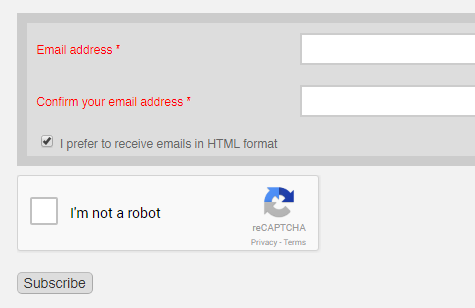
Then to add recatcha to the subscribe form:
 if (USE_SPAM_BLOCK) {
 $html .= '<div style="display:none"><input type="text" name="VerificationCodeX" value="" size="20"></div>';
 }
 $html .= '<p><script src="https://www.google.com/recaptcha/api.js" async defer></script><div class="g-recaptcha" data-sitekey="###YOUR-SITE-KEY###" ></div><br /><input type=submit name="subscribe" value="' . $GLOBALS['pagedata']['button'] . '" onClick="return checkform();"></p></form>';
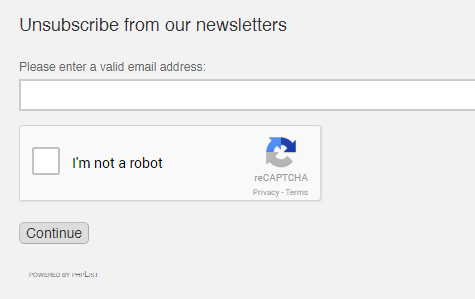
And finally the unsubscribe form:
 if (!$email) {
 $res .= '<script src="https://www.google.com/recaptcha/api.js" async defer></script><div class="g-recaptcha" data-sitekey="###YOUR-SITE-KEY###" ></div><br /><input type="submit" name="unsubscribe" value="' . $GLOBALS['strContinue'] . '"></form>';
There is another unsubscribe submit button:
$res .= '<p><script src="https://www.google.com/recaptcha/api.js" async defer></script><div class="g-recaptcha" data-sitekey="###YOUR-SITE-KEY###" ></div><br /><input type=submit name="unsubscribe" value="' . $GLOBALS['strUnsubscribe'] . '"></p>';
The CSS I use for my PHPLIST instalation is:
#newsfeed,#forgotpassword-form,#context-menu,.buttonhelp {display: none;}
body #pushkacombutton,body #login{
 background-color: #4f8ff5 ;
 color: #fff !important;
 padding: 8px 30px !important;
 text-align: center ;
 white-space: nowrap ;
 vertical-align: middle ;
 -ms-touch-action: manipulation ;
 touch-action: manipulation ;
 cursor: pointer ;
 -webkit-user-select: none ;
 -moz-user-select: none ;
 -ms-user-select: none ;
 user-select: none ;
 background-image: none ;
 position: relative ;
 border: 0 ;
 margin: 10px 1px ;
 cursor: pointer ;
 border-radius: 2px ;
 text-decoration: none ;
 transition: background-color .2s ease,box-shadow .28s cubic-bezier(.4,0,.2,1) ;
 outline: none ;
 height: auto ;
 line-height: inherit ;
}
body #login:hover,body #login:active,body #pushkacombutton:hover,body #pushkacombutton:active{
 color: #fff !important;
 box-shadow: 0 1px 6px 0 rgba(0,0,0,.12), 0 1px 6px 0 rgba(0,0,0,.12) !important ;
 background-color: #1d3da8 !important ;
 background-image: none !important;
 -webkit-user-select: none !important ;
 -moz-user-select: none !important ;
 -ms-user-select: none !important ;
 user-select: none !important;
 background-image: none !important ;
 border: 0 !important ;
 border-radius: 2px !important ;
 outline: none !important ;height: auto ;line-height: inherit ;
 text-align: center ;
 white-space: nowrap ;
 vertical-align: middle ;
 -ms-touch-action: manipulation ;
 touch-action: manipulation ;
}
You can add an external style sheet to the header here:
Add to /list/admin/ui/dressprow/pagetop_minified.php
And you can replace the logo of the site here:
/list/admin/ui/dressprow/header.inc
You can use the WordPress Types Plugin to create custom groups of posts/pages type objects, which include the standard title, body WYSIWYG and featured image (or not), along with any number of any types of fields, checkbox, radio buttons etc. etc.
Then you can use PHP/ Widgets on pages to output categories of data items
This will output all
$pid = get_the_ID();
$argsDeals = array( 'post_type' => 'product-data-set', 'post_status' => 'publish','posts_per_page' => 50,
'meta_query' => array( array( 'wpcf-featured-item-list' => 'checkbox2' ,'value'=>'checkbox2' ,'compare' => 'LIKE' )) ,'meta_key' => 'wpcf-homepage-list-order','orderby' => 'meta_value_num','order' => 'ASC' );
$my_hotdeals = get_posts( $argsDeals );
foreach( $my_hotdeals as $post ) :
 setup_postdata($post);
 echo get_the_title($post->ID);
 echo get_permalink( $post->ID);
 if ( has_post_thumbnail($post->ID) ) {
 echo get_the_post_thumbnail($post->ID,'75square-thumb');
 }
 if (get_post_meta( $post->ID, 'wpcf-custom-text',true) != '') {
  echo get_post_meta($post->ID, 'wpcf-custom-text',true) ;
 }
endforeach;
wp_reset_query();
The text in bold is what you change depending on your custom posts/ fields. – they are in order:
You can also filter by comparing text fields or radio selectors (selecting a category)
It is the same as above, but instead you change the get post args:
$argsDeals = array( 'post_type' =>'product-data-set', 'post_status' => 'publish','posts_per_page' => 50,
 'meta_query' => array( array( 'wpcf-product-name' => 'yes', 'value' => 'item1', ) ),'meta_key' => 'wpcf-priority','orderby' => 'meta_value_num','order' => 'ASC', 'exclude' => $pid2 );
And the fields are similar except product-name is a radio button option which is matched to “item1” and priority is again a numeric field which orders the output.
To get a list of all checkbox values for a current product/ object – use this code to enter the checkbox values into an array:
$catlist = array();
if (get_post_meta( $post->ID, 'wpcf-featured-products',true) != '') {
 foreach (get_post_meta($post->ID, 'wpcf-featured-products',true) as $key => $value) {
 foreach ($value as $key2 => $value2) {
 $catlist[]=$value2;
 }
 }
}
foreach ($catlist as $key => $value) {
 echo $value . ' ';
}
This code would be inside the loop which considers and extracts data for one object